GitHub
Category: Code
What is Git?
Git is a system for tracking change.
Every time you save work, fix a bug, try a new idea, or break something and recover it, Git records that moment in history.
Before Git, teams did this:
work_v1.zip
work_v2_FINAL.zip
workv2_FINAL_FINAL.zip
work_v2_FINAL_FOR_REAL.zip
Git solved that by introducing version control, a permanent, structured, recoverable memory of a project.
How Git actually works
Git stores everything as content-addressed objects:
Every commit is a frozen snapshot of your project at that moment in time.
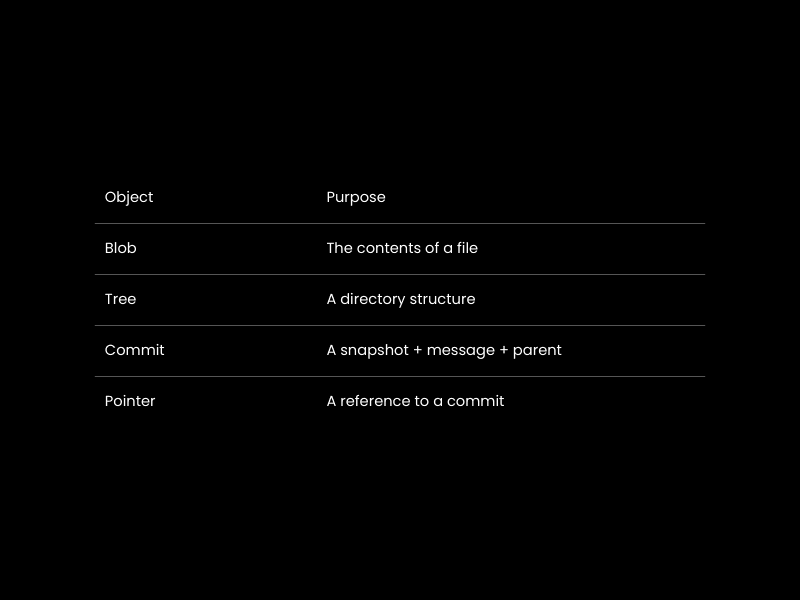
The Commit Chain
Each commit points to its parent.
1A ← B ← C ← DThis creates an immutable timeline.
History cannot be silently changed, only extended.
This is why Git is so reliable.
HEAD: where you are
HEAD is a pointer to your current position in that timeline.
When you move between commits or branches, you are simply moving where HEAD points.
That means when you:
- undo a mistake
- recover deleted work
- fix a broken merge
- move between versions
You are moving pointers across a permanent history.
This mental model will save you hours of confusion later.
Git vs GitHub vs GitLab vs Bitbucket
Git
Git is the engine.
It lives on your machine.
It tracks your project’s history.
It has no internet dependency.
You can use Git entirely offline.
GitHub / GitLab / Bitbucket
These are hosting platforms for Git repositories.
They provide:
- remote backups
- collaboration tools
- pull requests
- issue tracking
- CI/CD pipelines
Git is the version control system.
GitHub is a social network + server for Git projects.
How they fit together
Your local machine:
1[ Git Repository ]Your Local Machine
1[ GitHub Repository ]Remote Platform
git pull
They sync via
Git does the tracking.
GitHub shows the history.
Installing & setting up Git properly
- Check if Git is already installed in terminal
git version 2.51.0
If it prints a number, it's installed
Installing Git
Mac
Windows
Set your identity
Every commit is signed with this info.
Create your first repository
You now have a Git repository.
This folder contains a hidden .git directory — your project’s entire memory.
If you delete that folder and Git forgets everything.
The Git mental model
There are three spaces in Git:
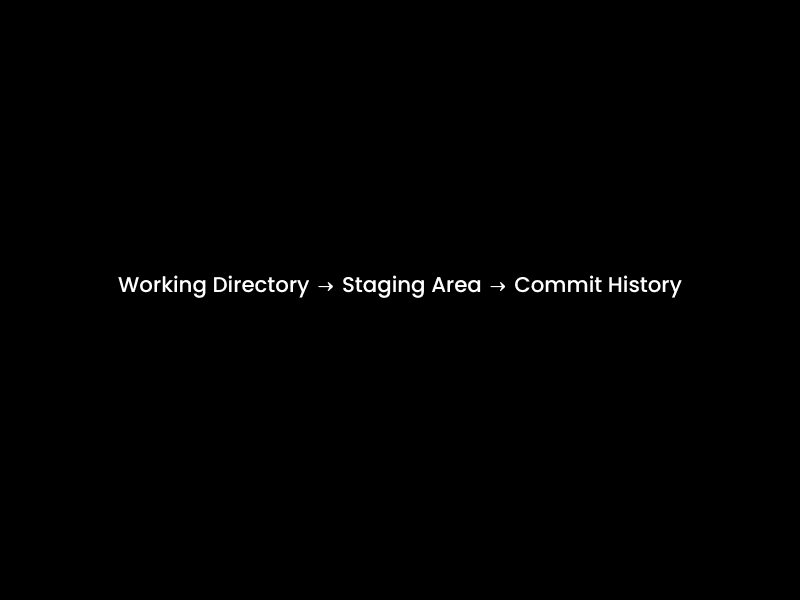
1. Working Directory
This is your actual project folder.
You edit files here. Nothing is saved in Git yet.
2. Staging Area
This is the pre-commit buffer.
You choose exactly what will go into the next snapshot.
3. Commit History
This is the permanent record.
Once something is committed, it lives in Git’s history forever.
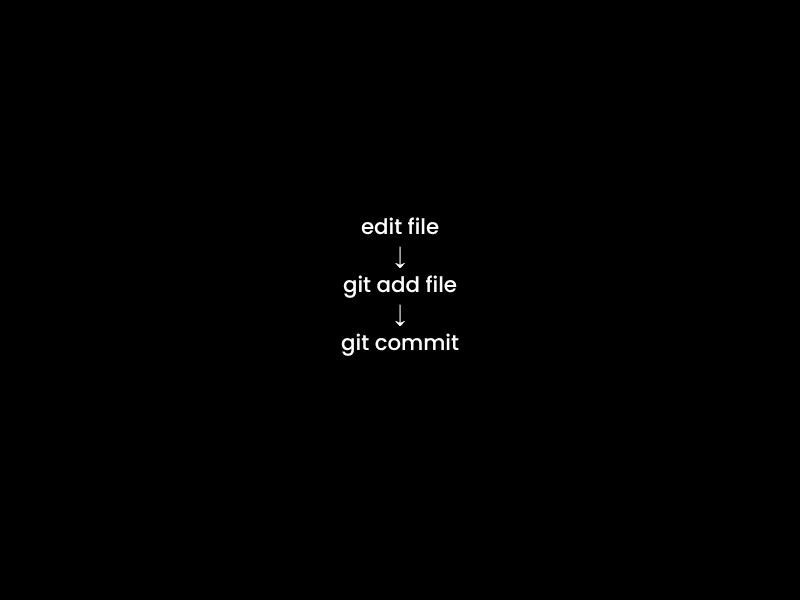
How files move
Branches: parallel timelines
A branch is just a movable pointer.
You are not creating copies of code.
You are creating alternate futures of the same project.
main ── A ── B ── C
\
feature D ── E
Both timelines exist safely.
You merge when ready.
Remotes: shared universes
Your local Git repo is private; only you can see it.
GitHub is a shared platform, so others can see your repo.
local main ↔ remote main
You move between them using:
git pushgit pullgit fetch
Core Git commands
These are the commands you will use every day.
Everything else builds on these.
Shows:
- what you changed
- what is staged
- what is untracked
- what branch you’re on
If you’re ever confused, run this.
creates a repository
Turns a folder into a Git project.
git clone https://github.com/user/project.git
copy a remote repository
Downloads a full project and its history.
git add file.txt
git add .
choose what goes into the commit
This moves changes from working directory → staging area.
Git commit -m "new changes to workspace"
This freezes the current staged changes into history
shows the full timeline of your project
shows changed before committing
send your work to github
Uploads commits to the remote repository.
get the latest work
Downloads and merges new commits from the remote.
check the remote without touching your work
Downloads updates without merging.
These commands form the core control loop:
edit → add → commit → push
Branching, merging & rebasing
What a branch really is
A branch is just a movable label pointing to a commit.
It is not a copy of your project.
When you create a branch, you are saying:
“From this moment, I want an alternate future.”
main ── A ── B ── C
\
feature D ── E
Both timelines exist safely.
Creating and switching branches
Merging: combining timelines
When your feature is ready:
Git will attempt to combine the histories.
If files were changed in both branches, you may get a merge conflict.
We’ll fix those later.
Rebasing: rewriting history
Rebase moves your branch on top of another:
This produces a cleaner history:
Before:
main A ── B ── C
\
feature D ── E
After:
main A ── B ── C ── D ── E
Use merge for collaboration.
Use rebase to keep your personal branch clean.
Never rebase commits that have been pushed and shared.
This is where Git stops being theory and starts becoming leverage.
Workflow
This is the cleanest and most powerful pattern for founders.
main → always stable, always deployable
feature branches → everything new
You can break things freely without touching production.
GitHub essentials
GitHub is where collaboration, visibility, and automation live.
Repositories
A repository is the hosted version of your Git project.
Issues
Issues are tasks, bugs, ideas, and discussions.
Professionals run their roadmap inside GitHub.
Pull Requests (PRs)
A pull request proposes changes.
It shows:
- what changed
- why it changed
- what needs review
PRs are where teams think together.
Code Reviews
Before merging, others inspect the code:
- catch bugs
- improve quality
- transfer knowledge
Projects
Kanban-style boards for planning and execution.